
Definitive guide
How to Migrate from WordPress To Wix
Migrate from WordPress to Wix
Migrating your work from WordPress means transferring all your materials to Wix. Since Wix doesn’t offer an automatic migration tool, I’ll provide a step-by-step guide to the whole process. Whether you’re migrating for better customization or simply to take advantage of Wix’s features, this article will make your move as seamless as possible.
Step 1: Evaluate your site
Make sure everything is ready before migrating your website to another CMS. Audit your website to check speed/load time, responsiveness, and SEO performance. Also, identify any broken links beforehand to resolve any technical issues. Ensure everything works in the new setup.
Step 2: Backup your WordPress site
I don’t mean to scare you, but your database and files should be stored safely before you transfer any material to Wix. You can use WordPress plugins such as UpdraftPlus, BackWPup, Jetpack, or Duplicator. If you’re a beginner, simply install a plugin of your choice, configure settings, choose a backup schedule, select a remote storage location, and proceed.
When plan A doesn’t work, you can always try to do things manually. First, access your site via FTP and download your file. Next, log in to phpMyAdmin to select your database. Lastly, click Export on the top and choose the “Quick” export method. Remember to select “SQL” as the file format. If you’re done, click “Go” to start the download.
Step 3: Purchase a Wix plan
Sign up for a Wix account and choose at least a premium plan to connect your domain. Here’s the pricing if you’re interested.

Prices on Wix work a bit differently. They have multiple tiers with each tier offering more functionalities. You pick from a variety of different plans based on the project’s requirements.
The best part about the pricing of Wix? It all comes with a custom domain, reliable web hosting, AI creation tools, and 24/7 customer care.
Premium plans include a one-year free domain voucher, and you can try it for free. If the user is unsatisfied, you can cancel within 14 days and receive a full refund with no questions asked.
Step 4: Choose a Wix template
Browse through Wix’s templates and choose one that matches your website style. Wix users have access to hundreds of different templates to choose from. They are divided into numerous categories based on the niches or types of internet sites they are intended for. These categories are super-specific so choosing what is right for you should be easy.
Just replace the placeholder content with your own, and that’s it; you have a website. You can adjust elements to make them just the way you like them.
Here are some template examples:
Example 1

Example 2

Example 3

Step 4: Set up your Wix account
Installing Wix is easy! Just follow my steps, and you’ll have everything set up in less than 5 minutes.
Step 1: Go to Wix and click on Start Now.

Step 2: Sign up for a new account. You can also sign in using your existing Google or Facebook account.

Step 5: Customize your template
Use the drag-and-drop editor to replicate your website’s overall structure in Wix by creating the same navigation and hierarchy for each page.
Wix has a drag-and-drop visual editor that works similarly to Powerpoint or Keynote. If you see something, you can alter it just by clicking on it. The webpage remains visible, and updates are made as you make them. Simple as that!
Step 6: Migrate your content
Use the Wix Blog Importer or the Wix Content Manager to accomplish this process.
The Wix Blog Importer imports your WordPress blog posts into your Wix blog. The import process might not be as precise as you’re expecting, so you may need to tweak the posts once they’re on Wix.
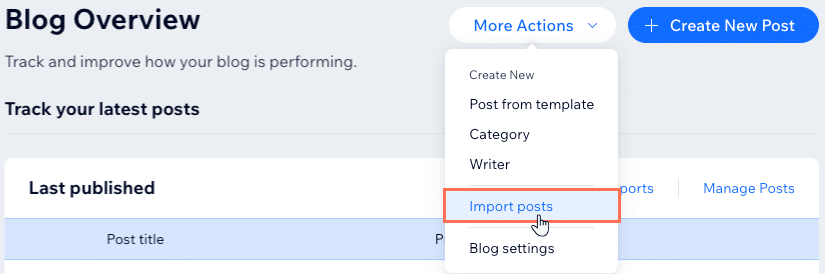
You can also use Wix Content Manager if you want to transfer more materials other than blog posts, such as products, galleries, or custom content.
Step 7: Set up SEO on Wix
Use the Wix SEO Wiz to optimize your website for search engines to recognize.
When you first set up Wix SEO Wiz, it creates a customized SEO plan based on your website’s type and will give you recommendations to improve your visibility.
Step 8: Test your site before launching
This is the time to double-check everything to ensure a smoother user experience when the site goes live. Websites may render differently across browsers, so testing helps to have an accurate and error-free appearance.
Step 9: Redirect traffic
Since you have a new website, you’ll need to update your domain to point to your new Wix website. This approach helps you avoid losing traffic or SEO rankings. Updating your domain maintains the flow of traffic to your site, preventing any disruption in visits from your previous one.
If you’re not sure what to do, here’s a step-by-step guide you can follow:
- Log in to your domain registrar
- Look for your domain’s DNS records.
- Edit the domain’s A record to Wix’s IP address.
- Go to your Wix dashboard.
- Find the Domains section.
- Connect your existing domain.
- After updating your DNS settings, Wix verifies the connection.
Step 10: Launch your Wix website
When everything looks good, you can launch your Wix website. Submit your new website’s sitemap to Google Search Console to notify Google that your site has been moved. You can also use the “Change of Address” tool to ensure that your website continues to rank without a significant drop in visibility.
Conclusion
I hope this step-by-step confidently helps you launch your Wix website! If you run into any questions or need a hand along the way, feel free to reach out—I’m happy to help! All the luck with your new website!
